GET STARTEDTHE DEMO
The demo
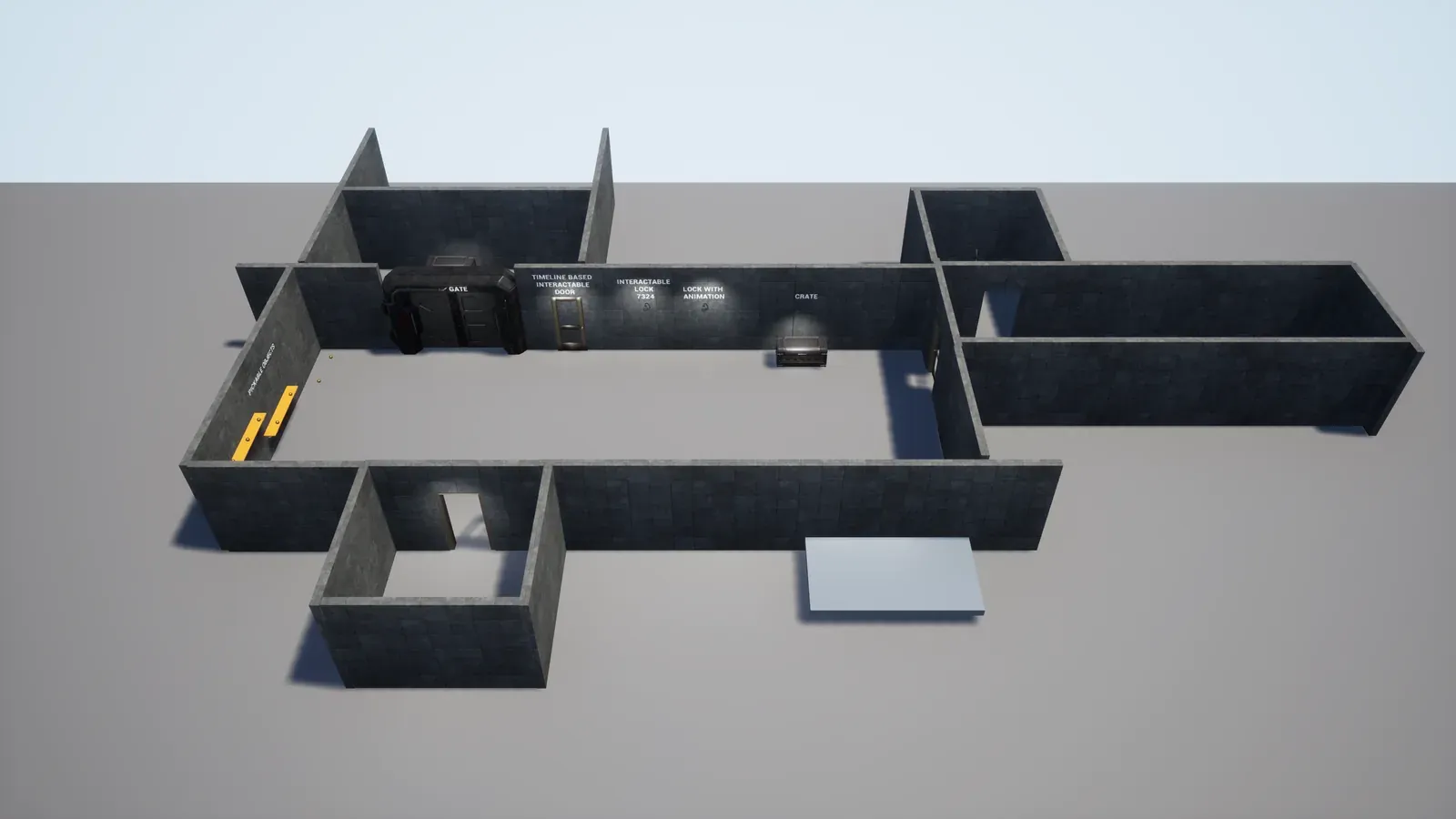
The plugin ships a demo map, /CharacterInteractionSystem/Demo/Levels/CISExampleMap. It has a playable character and about twenty interaction objects: doors, levers, a switch, a button, code locks, crates, a gate, a valve, a hand scanner and pick-up items. Open it to see each object work before you build your own, and to find the classes and tags you can reuse.
Open the demo
Section titled “Open the demo”- In the Content Browser, open Settings and turn on Show Plugin Content and Show Engine Content.
- Open the map
/CharacterInteractionSystem/Demo/Levels/CISExampleMap. - Click Play. The demo character starts at the map’s player start. Walk up to an object: when the character can use it, the prompt E | INTERACT appears above it. Press E to use it.
Controls
Section titled “Controls”The demo maps these keys and buttons through its input mapping /CharacterInteractionSystem/Demo/Input/IMC_CISDemo.
- Move and look with the keyboard and mouse or with the gamepad, through
IA_CISDemo_MoveandIA_CISDemo_Look. Space jumps (IA_CISDemo_Jump), and Left Shift runs. - E uses the object in front of the character. Pressing E a second time interrupts a use that is set to stop on a second press. Letting go of E interrupts a use that is set to stop on release.
- The gamepad’s bottom face button does the same as E.
- V switches the camera, and 1 restarts the level.
What’s on the map
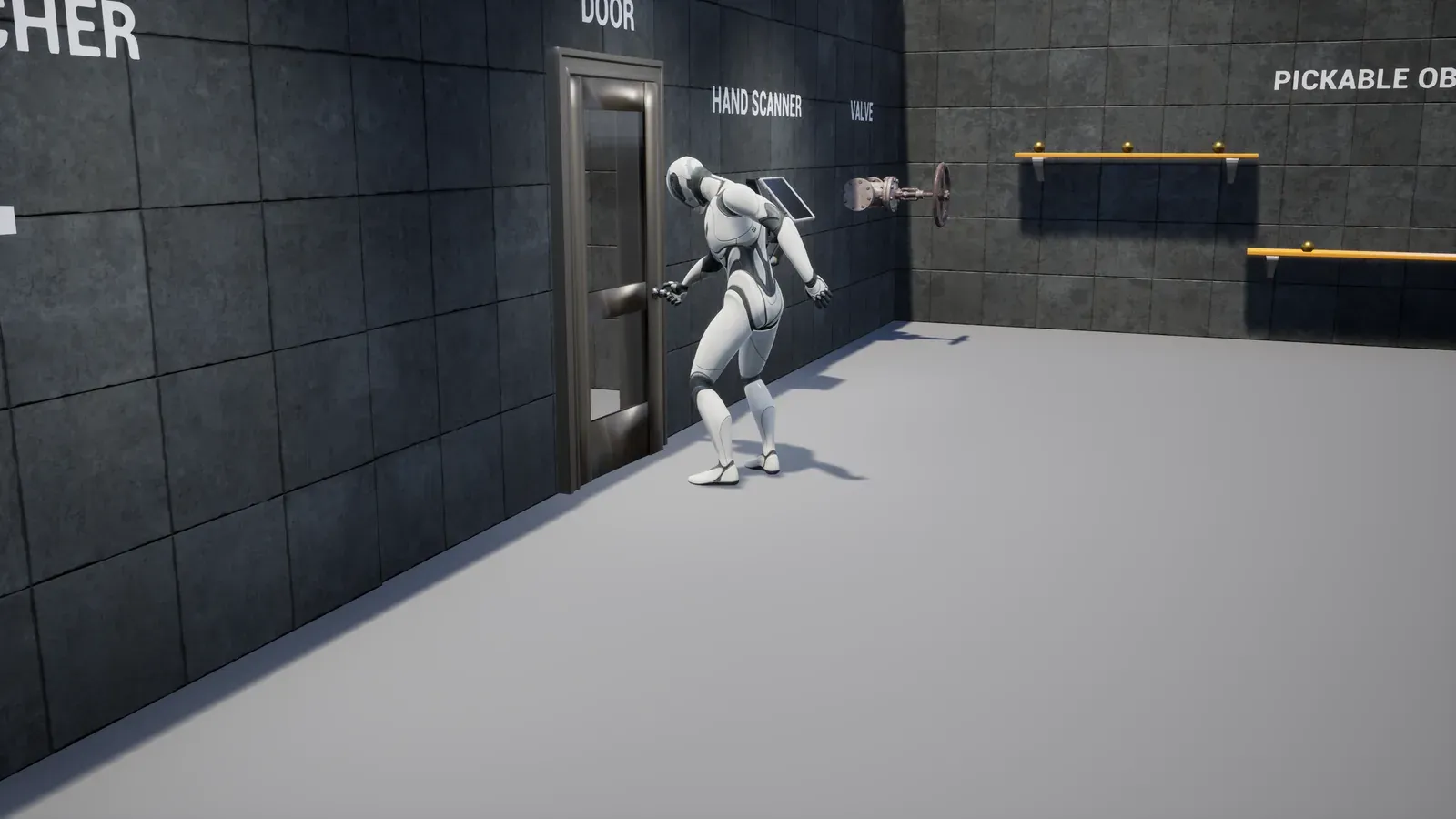
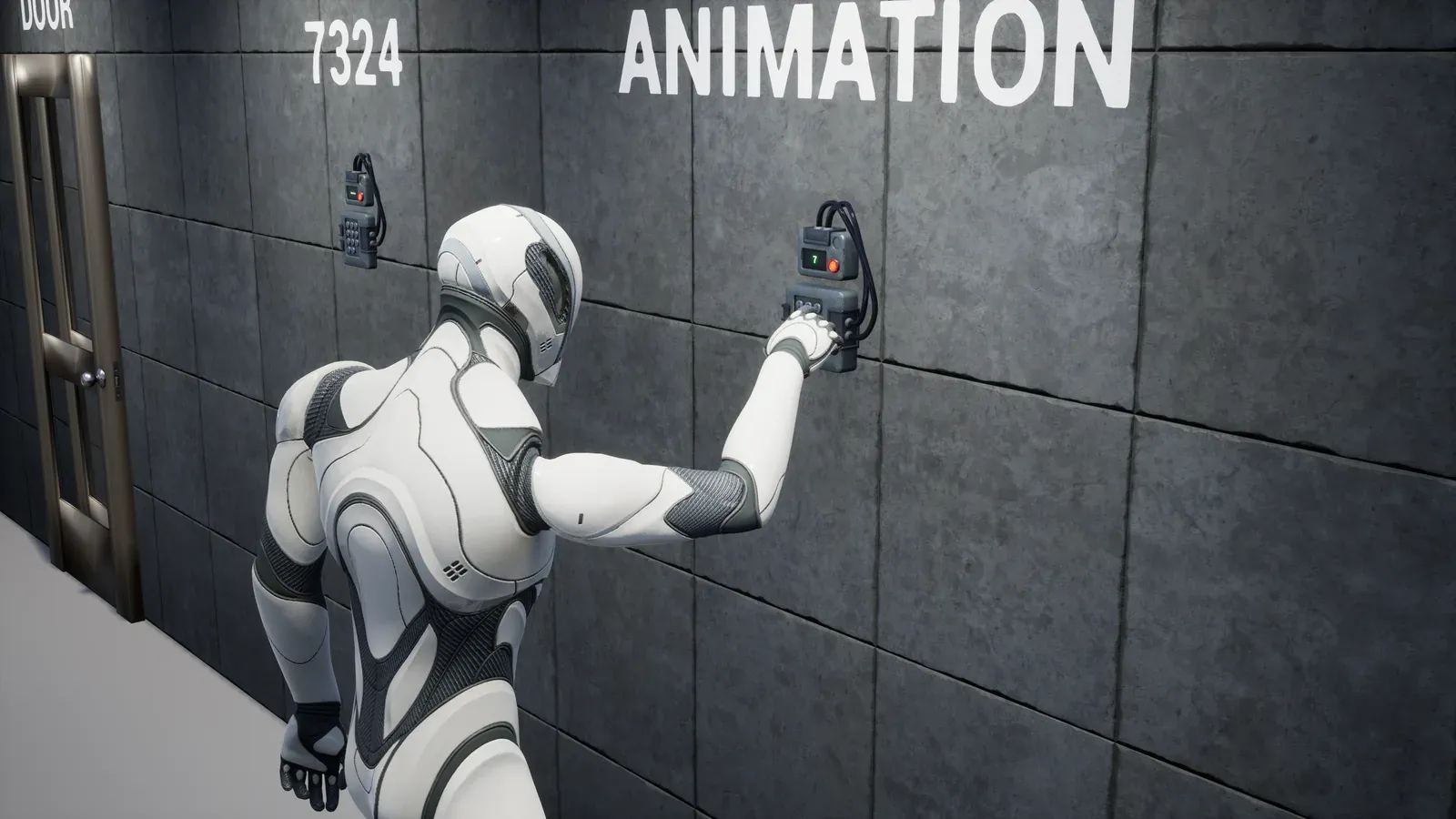
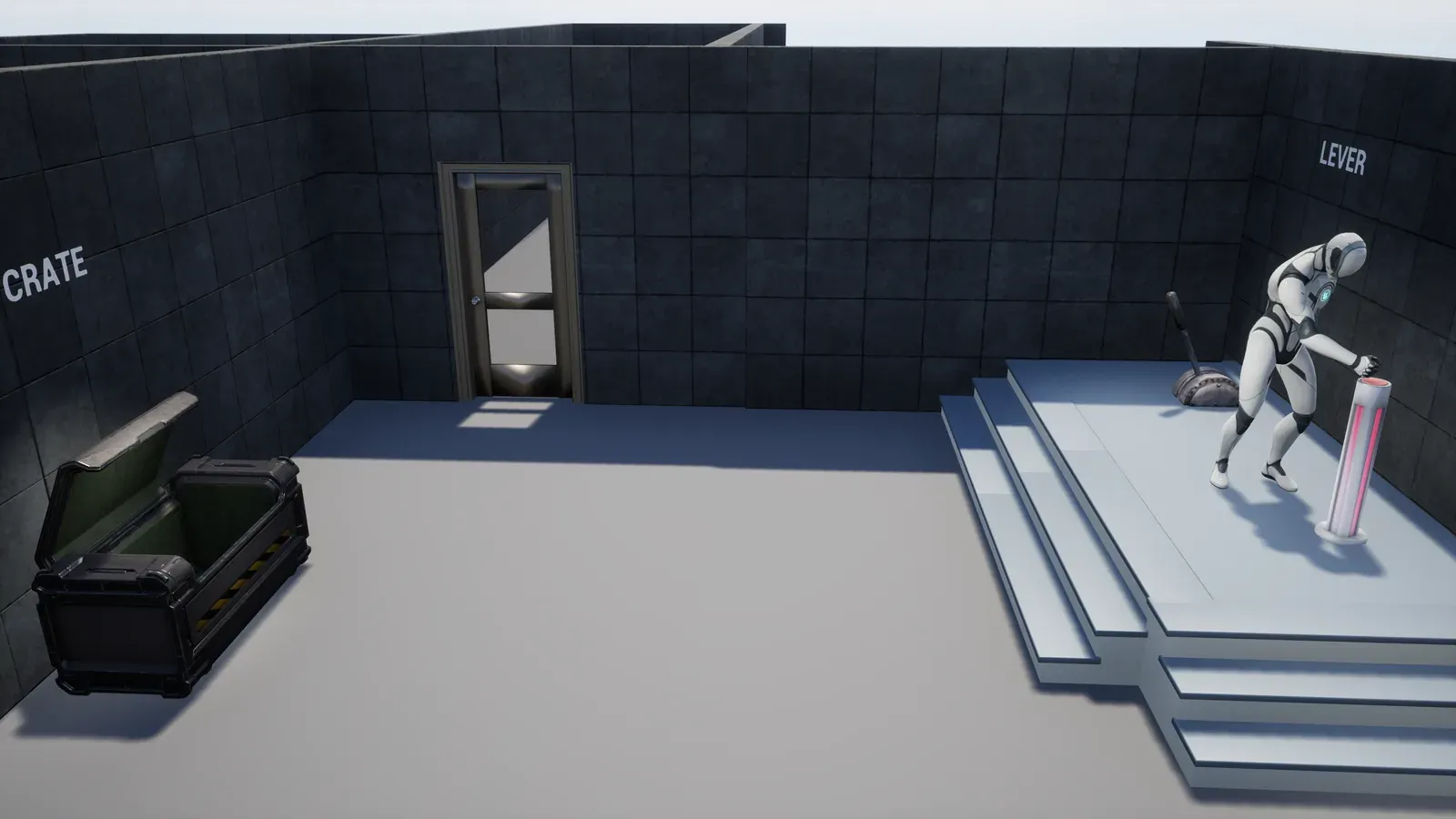
Section titled “What’s on the map”The walls and the objects on the map are labelled with what they do. The table lists each object by its actor name on the map.
| Object | Class | What it shows | Guide |
|---|---|---|---|
BP_InteractionDoor | BP_InteractionDoor | A door that opens and closes from either side, with a walk to the side’s point. | Two-sided door |
BP_InteractionDoor_Locked | BP_InteractionDoor_Locked | A door that stays closed until a lever on the map changes its state. | Lever and locked door |
BP_InteractionDoorWithoutAnim | BP_InteractionDoorWithoutAnim | A door that opens and closes on a timeline in its own graph, with sound actions instead of montages, and no walk to the door. | |
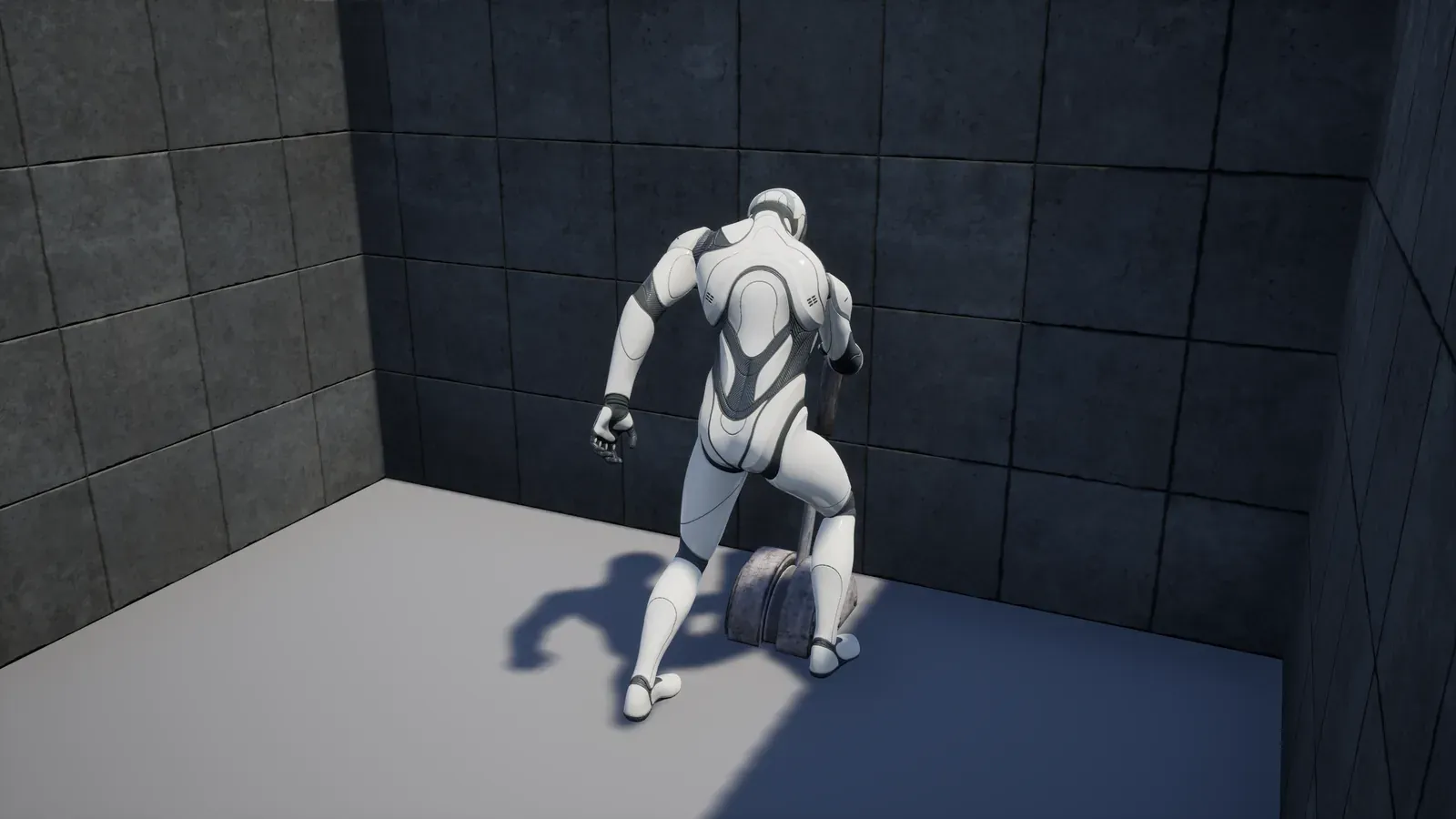
| BP_Lever3, BP_Lever2 | BP_Lever | A lever that is pulled and pushed back. | Lever and locked door |
BP_SimpleSwitcher | BP_SimpleSwitcher | A switch that clicks between off and on. | Quick start |
| BP_Button2 | BP_Button | A button that is pressed in. It changes colour with its state, between CIS.Button.SwitchOff and CIS.Button.SwitchOn. | |
| BP_CodeLock2, BP_CodeLockWithAnimation | BP_CodeLock, BP_CodeLockWithAnimation | A code lock with a keypad. The second one also plays an animation. | |
| BP_Crate, BP_Crate2 | BP_Crate | A crate with a lid that opens and closes. | |
BP_Gate | BP_Gate | A gate that opens. | |
BP_HandScanner | BP_HandScanner | A palm scanner on the wall. The character plays one animation when it uses it, and the scanner has no state. | |
| BP_Valve3 | BP_Valve | A valve wheel that turns open and closed. | |
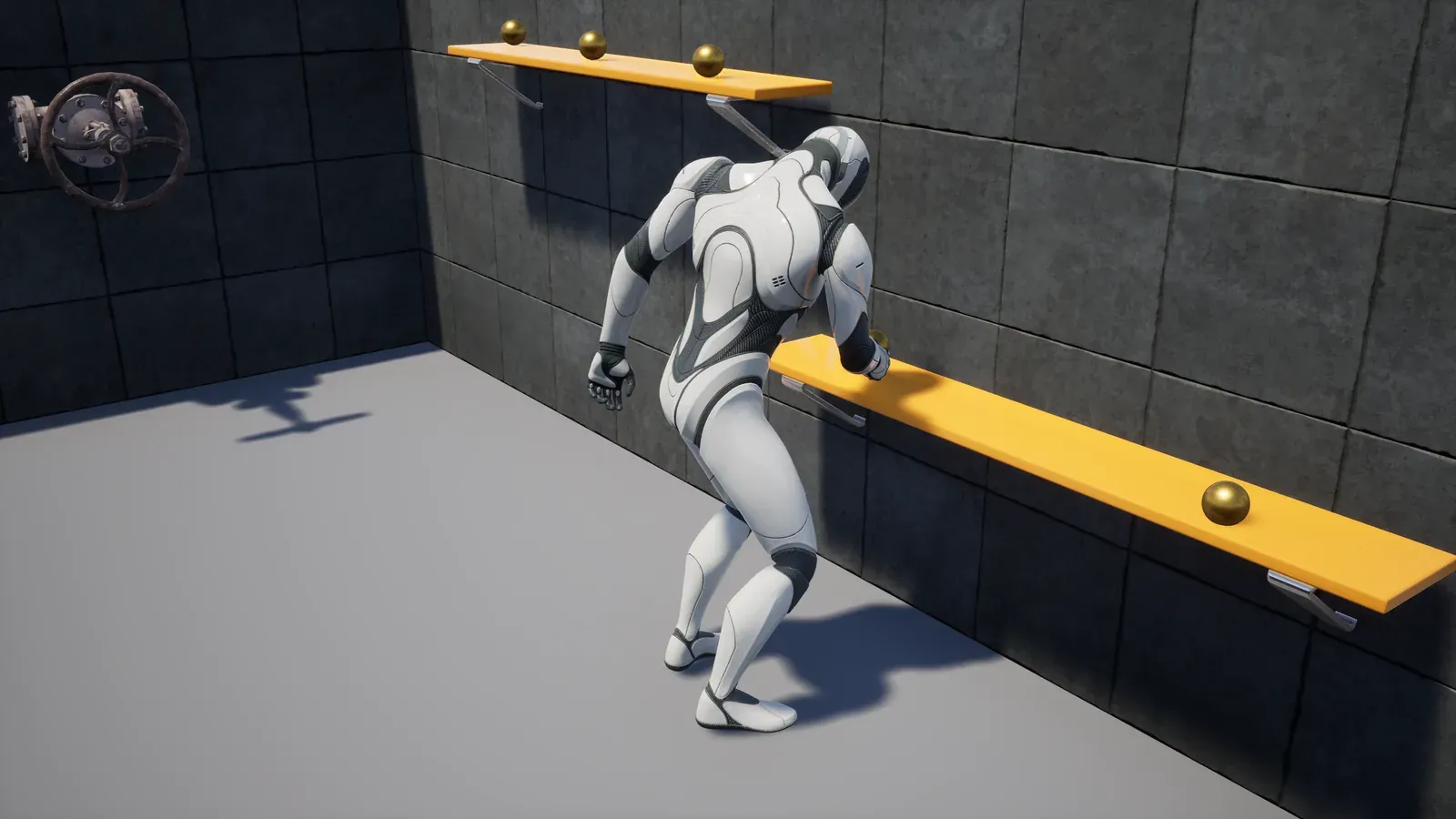
| BP_TestPickItem and six more pick items | BP_BasePickItem | Items on shelves that the character picks up. A picked item is removed from the map. | Pickup item |
Demo classes
Section titled “Demo classes”The demo classes are plugin assets in the folders below. Use them as they are, or as the parent of your own Blueprint.
Each group gives its folder under the plugin’s content root, CharacterInteractionSystem, which holds the demo.
- Actions, folder
Demo/Blueprints/InteractionObjectActions:BP_PlaySoundActionplays a sound (its Sound variable),BP_InteractionObjectActionPlayMontageplays a montage on the character and on the object,BP_InteractionObjectActionPickUpplays one of three pick-up montages, andBP_CodeLockActionis the code lock’s action. - Move handlers, folder
Demo/Blueprints/InteractionObjecMoveHandlers:BP_BaseMoveHandleris the parent of the other two.BP_MoveToComponentMoveHandlerwalks the character to a component of the object, andBP_MoveToDistanceMoveHandlerwalks it a set distance (its Move Distance variable). - Conditions, folder
Demo/Blueprints/InteractionObjectConditions:BP_InteractionObjectCondition_IsObjectRenderedlets onlyBP_CISCharacteruse an object,BP_InteractionObjectConditionDIstanceCheckchecks the distance, andBP_InteractionObjectConditionTracechecks that the object is in sight. - Use test, folder
Demo/Blueprints/DetermineUseObjectTests:BP_DetermineObjectTest_InCameraViewscores objects by whether they were recently rendered, and reads the first-person camera ofBP_CISCharacter. The distance testBP_DetermineObjectTest_Distanceis in the folderContent/Blueprints, not inDemo. - Data objects:
BP_CISDataObject, in folderDemo/Blueprints, is the data object of the demo character.BP_DataObject_LoackedDoor, in folderDemo/Blueprints/InteractionObjects, is the data object of the locked door. - Objects, folder
Demo/Blueprints/InteractionObjects: the doors, lever, switch, button, code locks, crates, gate, hand scanner, valve and pick items.BP_InteractionDooris built onBP_BaseInteractObject. - Character and game, folder
Demo/Blueprints:BP_CISCharacteris the demo character,BP_CISGameModeis the demo game mode andBP_CISHUDis its HUD, which draws the E | INTERACT prompt.
Demo tags
Section titled “Demo tags”The plugin defines these 17 tags in its runtime module, so they exist in every project that has the plugin. The demo uses them as object states. To use them in your own objects, pick them in the state fields; you do not need to add them to Project Settings › GameplayTags.
| Tag | Meaning |
|---|---|
CIS.Button.SwitchOff | The switch is off. |
CIS.Button.SwitchOn | The switch is on. |
CIS.CodeLock.Closed | The code lock is closed. |
CIS.CodeLock.Opened | The code lock is open. |
CIS.Crate.Closed | The crate is closed. |
CIS.Crate.Opened | The crate is open. |
CIS.Door.ClosedOnKey | The door is locked. The demo’s locked door starts in this state. |
CIS.Door.HasKeyToOpenDoor | Declared for doors. No demo object starts in it; the demo door’s Animation Blueprint compares the state with it. |
CIS.Gate.Closed | The gate is closed. |
CIS.Gate.Opened | The gate is open. |
CIS.Lever.Pulled | The lever is pulled. |
CIS.Lever.Pushed | The lever is pushed. |
CIS.Object.Door.Closed | The door is closed. |
CIS.Object.Door.Opened | The door is open. |
CIS.Object.Valve.Closed | The valve is closed. |
CIS.Object.Valve.Opened | The valve is open. |
CIS.PickObject.Picked | The item has been picked up. |
Use the demo in your project
Section titled “Use the demo in your project”- You can take the demo’s action, condition and data object classes, and its tags, into your own project. The tags come with the plugin. The move handlers work only with
BP_CISCharacter. - The demo’s objects are tied to the demo character. Its move handlers move only
BP_CISCharacter, and most demo objects haveBP_InteractionObjectCondition_IsObjectRenderedin Usable Conditions, which lets onlyBP_CISCharacteruse them. The camera use testBP_DetermineObjectTest_InCameraViewalso reads the first-person camera ofBP_CISCharacter, so it does not suit another character. Your own character cannot use these objects. Test your character with your own objects, as in Your own character. - The E | INTERACT prompt comes from
BP_CISHUD, the demo game mode’s HUD. In your own game mode there is no prompt until you add one.