GUIDESYOUR OWN ACTION
Your own Action
This guide makes BP_MySoundAction, an Action that does what BP_PlaySoundAction does: it plays a sound where the object stands, then finishes. The sound is set per object, so one Action serves every switch. You do it in five steps, with a short graph and no other code.
You need
Section titled “You need”- You have followed Quick start, so BP_MySwitch is a switch you can use in the demo map.
Then follow these steps in order.
-
In the Content Browser, choose Add › Blueprint Class, open All Classes, pick
UCISInteractionObjectActionas the parent class and name the Blueprint BP_MySoundAction. An Action has no components, so there is nothing to add. -
Open BP_MySoundAction and add the variable. In My Blueprint, click + next to Variables, name it Sound, and set its type to Object Reference with the class Sound Base. Select it and turn on Instance Editable in the Details panel, so the variable shows in the settings of each object that uses the action.
-
Play the sound. Right-click the Event Graph, choose Add Event ›
StartInteractionObjectAction, and wire the nodes below. The event runs when the character starts the action on an object. Its parameters are the interaction character, the character’s interaction component, the object’s interaction object component and the side that was used.- Add Play Sound at Location from Gameplay Statics. Wire the event’s execution pin to its Execute pin, and the event’s InteractionCharacter to its World Context Object.
- Drag Sound from My Blueprint into the graph and wire it to the Sound pin of Play Sound at Location.
- From the event’s InteractionObjectComponent pin, add Get Owner. It returns the object’s actor.
- Add Get Actor Location and wire the owner to its Target. Wire its location to the Location pin of Play Sound at Location. The location is where the object stands.
Event StartInteractionObjectActionInteraction CharacterCharacter Interaction ComponentInteraction Object ComponentInteraction Object SideGet OwnerTarget is Actor ComponentTargetReturn ValueGet Actor LocationTarget is ActorTargetReturn ValueSoundSoundPlay Sound at LocationWorld Context ObjectSoundLocationBLUEPRINTFinish ActionTarget is CISInteraction Object ActionTargetThe Event Graph of BP_MySoundAction after step 3. Step 4 adds the last node, Finish Action. -
Finish the Action. Wire the Then exit of Play Sound at Location to Finish Action, the function of
UCISInteractionObjectAction, as the last node of the graph. Until it runs, the use does not end, and the state of the object does not change. Event OnUseFinished runs when the Action finishes, also when it is interrupted. Use it only for clean-up, such as undoing what the Action started; this sound needs none. -
Use it on the switch. Open BP_MySwitch from Quick start. In both entries of its side actions, replace Interaction Object Action
BP_PlaySoundActionwith BP_MySoundAction. The new Action is a new object, so set its values again in both entries: Sound toS_Switcher_Cue, and New State After Finish Action toCIS.Button.SwitchOnin entry 0 andCIS.Button.SwitchOffin entry 1. Compile and save the Blueprint, then play the demo map.
Key settings
Section titled “Key settings”The table lists the settings of the Class Defaults of BP_MySoundAction, shown below.
| Default | ||
|---|---|---|
| Sound | None | |
| Settings | ||
| New State After Finish Action | ||
| Execution | ||
| Instancing Policy | ||
| Net Execution Policy | ||
| Setting | What it does |
|---|---|
| Net Execution Policy | Where the Action runs in a networked game. All Machines plays the sound on every machine, so every player hears it. |
| Instancing Policy | How the Action is copied. The default, Default, makes a separate copy for each use of a Blueprint Action, so one use does not change the next. |
| Set New State After Finish Action | Whether the object takes a new state when the Action finishes. It is on by default. |
| New State After Finish Action | The state the object takes when the Action finishes, if the setting above is on. Set it on each entry of the switch’s side actions, as in step 5. |
Check that it works
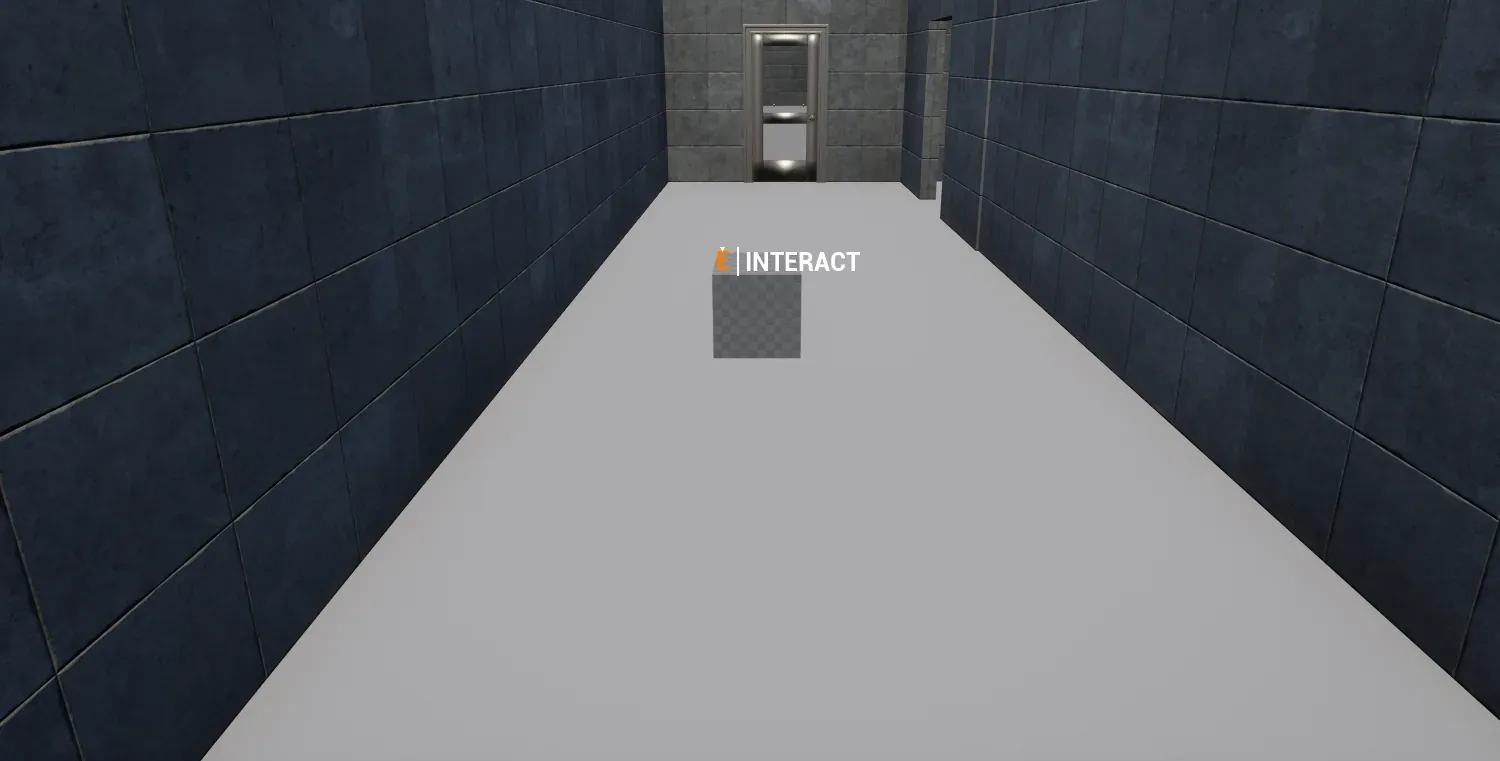
Section titled “Check that it works”- Walk up to the switch and press E: the click plays at the switch, and the switch changes state.
- The switch changes state when Finish Action runs, which is right after the sound starts. The sound itself is not waited for.
If something is off
Section titled “If something is off”- The use never ends: the graph has no Finish Action call, or it is not reached from Play Sound at Location. Add it as in step 4.
- There is no sound: Sound is not set in the entries of BP_MySwitch (step 5). The variable must be set on the object, not only in BP_MySoundAction.
- Only one player hears the sound: check Net Execution Policy in the class defaults. All Machines plays it on every machine.