GUIDESYOUR OWN CONDITION
Your own Condition
This guide makes BP_MyDistanceCondition, a Condition that lets the character use an object only while standing within a set distance of it. The distance is set per object, so one Condition serves every object. You do it in five steps, with a short graph and no other code.
You need
Section titled “You need”- You have followed Quick start, so BP_MySwitch is a switch you can use in the demo map.
Then follow these steps in order.
-
In the Content Browser, choose Add › Blueprint Class, open All Classes, pick
UCISInteractionObjectConditionas the parent class and name the Blueprint BP_MyDistanceCondition. A Condition has no components, so there is nothing to add. -
Open BP_MyDistanceCondition and add the variable. In My Blueprint, click + next to Variables, name it Distance and set its type to Float. Leave its default value at 0; each object sets its own distance in step 5. Select it and turn on Instance Editable in the Details panel, so each object that uses the Condition shows its own distance.
-
Check the distance. In My Blueprint, choose Functions › Override › Check Condition. The graph opens with the entry and the return node of the function. Build the graph as follows:
- From the entry’s InteractionObjectComponent pin, add Get Owner. It returns the object’s actor.
- Add Get Distance To. Wire the owner to its Target pin, and the entry’s InteractionCharacter pin to its Other Actor pin.
- Drag Distance from My Blueprint into the graph.
- Add a <= node with Float inputs. Wire the distance from Get Distance To to its first input, and Distance to its second.
- Wire the <= result to the Return Value pin of the return node, and the entry’s Then exit to the return node’s execute pin.
Get Distance To measures the straight-line distance between the two actors in 3D, so a height difference counts. This is not the Interaction Distance of the object, which is measured flat, ignoring height. The Condition passes while the character is at most Distance away.
Check ConditionInteraction CharacterCharacter Interaction ComponentInteraction Object ComponentInteraction Object SideGet OwnerTarget is Actor ComponentTargetReturn ValueGet Distance ToTarget is ActorTargetReturn ValueOther ActorDistanceDistance<=BLUEPRINTReturn NodeReturn ValueThe Check Condition graph of BP_MyDistanceCondition. The character can use the object while the distance is at most Distance. -
Choose where it is checked. Every Condition has a Server Validation setting, in the Settings category. Its values are:
- Default: for a Blueprint class, the server checks the Condition too and rejects a use that fails it. A Condition written in C++ is not checked by the server under Default; set Validate to change that. Use Default for this guide: the distance comes from the positions of the two actors, which the server knows.
- Validate: the server always checks the Condition, also a C++ one.
- Do Not Validate: only the player’s machine checks it. Use this for a Condition that reads only what that machine knows, such as the camera or what is on screen. A modified client can then skip the check, so use it only where the check is not a security rule.
Set Server Validation on the Condition itself: open BP_MyDistanceCondition, click Class Defaults and find it in the Settings category. You can also set it on one entry of Usable Conditions in the object, since the property is editable there.
The server check of all use requests, including the Conditions, is turned on by the project setting Server Validation. It covers requests from remote clients, and it is on by default. You find it in Project Settings › Plugins › Character Interaction System. If it is off, the server accepts a use without these checks.
-
Add it to the switch. Open BP_MySwitch from Quick start and select its CISInteractionObject component. Under Interaction Settings › Usable Conditions, click +, choose BP_MyDistanceCondition and set Distance to 150. Leave Interaction Distance at its default, 300. The switch’s own distance stays at 300, so the Condition is what limits the use to 150. Compile and save the Blueprint, then play the demo map.
Settings Interaction Settings Interaction Sides 0 Array element Interaction Distance 300.0 Angle Detection Component Override Character Interaction Angle Override Character Interaction Angle 0.0 Object Interruption Type Override Object Use Time Override Object Use Time 0.0 Visible Conditions 0 Array element Usable Conditions 1 Array element Index [ 0 ] Distance 150.0 Server Validation Override Data Object Class Data Object Class None Object Priority Transfer Ownership During Use Manage Owner Dormancy Max Use Duration 0.0 The Usable Conditions of BP_MySwitch after step 5: one BP_MyDistanceCondition with a Distance of 150. Put the Condition in Usable Conditions. Visible Conditions is a separate list. Its Conditions decide whether the object is visible to the character. Usable Conditions decide whether E works, and they are checked only when the Visible Conditions pass. Leave Visible Conditions as it is.
Key settings
Section titled “Key settings”| Setting | What it does |
|---|---|
| Server Validation | Whether the server also checks the Condition before it accepts a use. Default checks it on the server for a Blueprint class and not for a C++ class. Use Do Not Validate for a Condition that reads only what the player’s machine knows. |
| Usable Conditions | The Conditions that must all pass for E to work on the object. A Condition here limits the use itself. |
| Visible Conditions | The Conditions that must all pass for the object to be offered to the character, so it is visible. They are checked before Usable Conditions, which are checked only when these pass. |
Check that it works
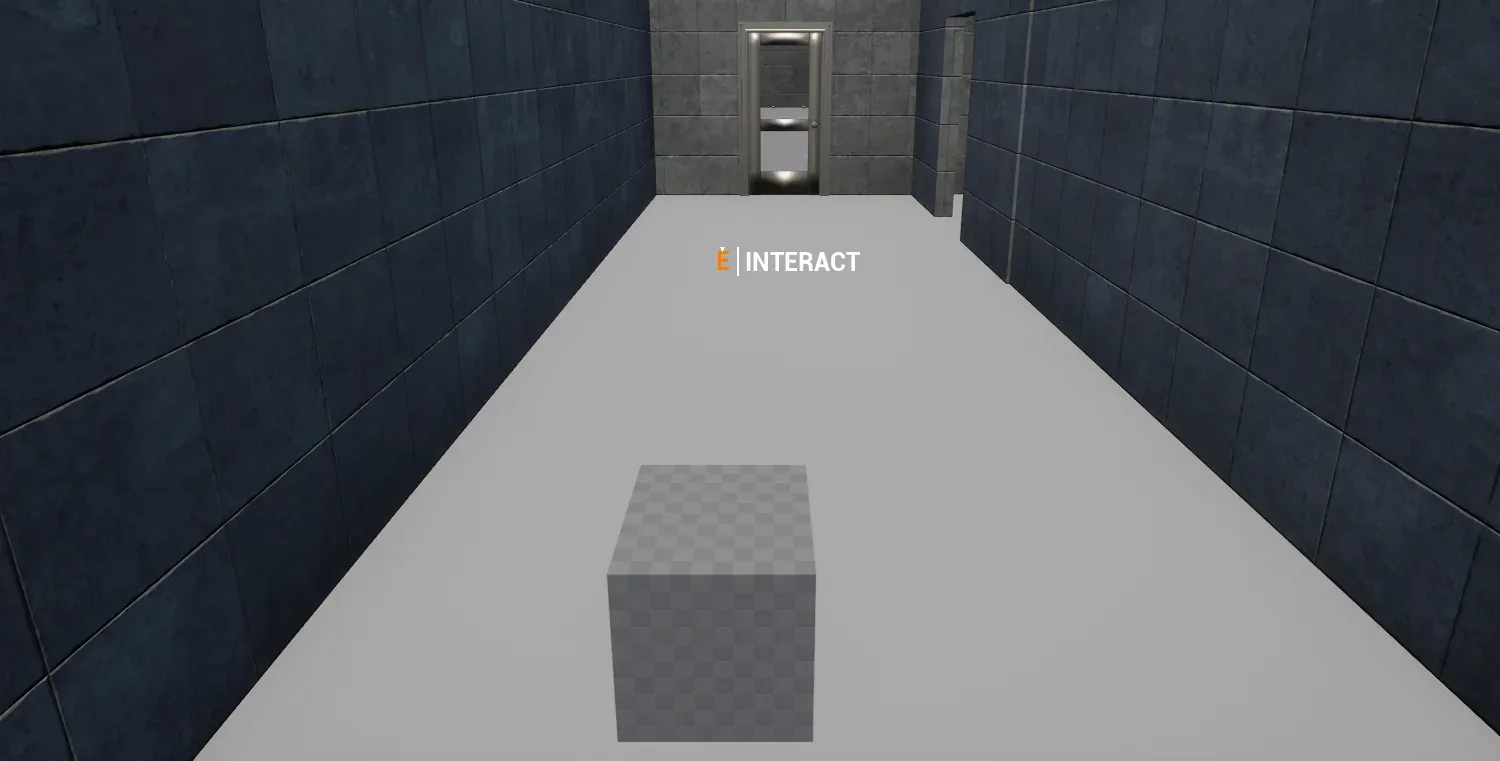
Section titled “Check that it works”- Stand about 2 m from the switch, facing it, and press E: nothing happens, and the switch does not change state. The prompt does not show from there either: the object is not usable there, and the demo HUD shows the prompt only for an object the character can use.
- Walk up to about 1 m from the switch, facing it, and press E: the switch clicks and changes state.
If something is off
Section titled “If something is off”- The switch is never usable, even when you are close: check that BP_MyDistanceCondition is in Usable Conditions of BP_MySwitch, not in Visible Conditions, and that the Condition is compiled (step 5).
- In a networked game the server refuses the use although you are close. The server writes the refusal to its log (in the editor, with every player in one process, the Output Log): type
log CISLog Login the console, play again and look for aServerRequestUseline that says the use is rejected withECISUseRejectReason::ConditionFailed. The server measures the distance from the character’s server position, which can lag behind the position on the client, so give the Condition a small margin. - The Condition checks something only your own machine knows, such as the camera or the view: set Server Validation to Do Not Validate in the Condition, so the server does not check it.