DAMAGESOFT ZONES
Soft zones
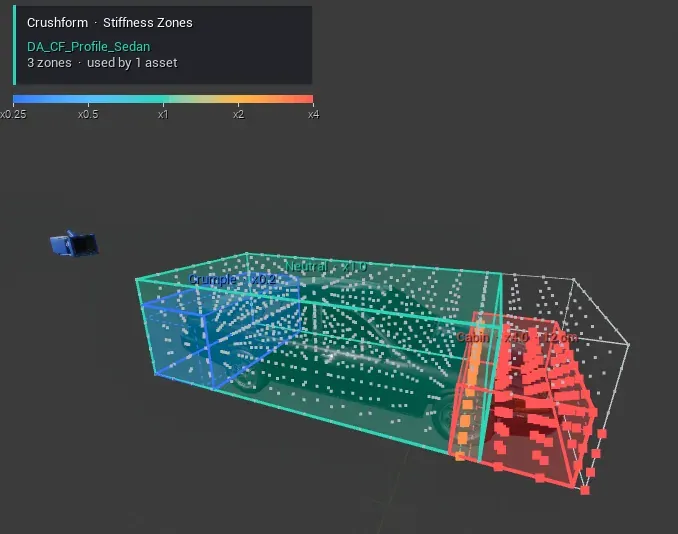
A body is not equally stiff everywhere. A front crumple zone should fold, and a cabin should keep its shape. A stiffness zone says where. It is a box on the body that divides the dent of every hit that lands inside it. The zones live in the dent profile, and the Zone Editor draws and shapes them in the Blueprint editor. Zones divide dents, not paint: the paint wears as the metal moves, whatever the zone.
What it does
Section titled “What it does”Each zone is a box. A hit inside it pushes the metal less, or more, than the rest of the body. A stiffer zone also holds a sill or a roof rail in place while the door between two of them caves in. A crush press ignores zones.
How it works
Section titled “How it works”- The box. The box is in the root component’s space, in cm. Outside it, the zone changes nothing. A face on the body’s collision, or past it, counts as the skin: the zone holds full strength up to it. Part of the box past the lattice is ignored.
- Stiffness. At 1 the zone dents like the rest of the body. At 3 a hit dents a third as deep. At 0.5 it dents twice as deep. Higher is stiffer, so higher is shallower.
- Edge Width. The zone fades in over a band along its inner faces, so two zones that run into each other blend. Two zones that only touch both fade out at the shared face.
- Max Depth. The deepest any hit pushes the body inside the box, however many hits come. 0 uses the profile’s Max Displacement.
- Mirrored. The zone also applies reflected across the body’s centre line, so one zone covers a left and a right door.
- Overlap. Where boxes overlap, the stiffer one wins.
The Zone Editor draws each zone as the game paints it. H cycles the lattice heatmap: off, around the selected zone, or every node. The editor’s hint line lists the rest: LMB selects, RMB opens the menu, Ctrl+D duplicates, Del deletes, M mirrors, F focuses and Esc deselects.
The editor draws and edits zones only in the Blueprint editor’s viewport, for a selected deform or vehicle adapter component. A level and Play In Editor show nothing. Presets for the menu come from Project Settings > Plugins > Crushform Zone Editor.
Set it up
Section titled “Set it up”- Make the profile as in Dents and the lattice, steps 1 and 2. On a vehicle, set the adapter’s Deform Profile and keep Dirt and Dents on. With Deform Profile empty, the vehicle uses the project’s default profile, and the editor has nothing of its own to edit. The plugin’s sedan profile,
DA_CF_Profile_Sedan, ships with no zones, so the zones below are the ones you add. - Open the vehicle’s Blueprint and select the adapter component in the viewport or in the Components list.
- In the Details panel, find the Stiffness Zones section and click Add Zone. The new zone sits in the middle of the lattice, a quarter of its size.
- Drag the zone’s faces in the viewport until its box covers the part you want to stiffen or soften. Set Stiffness, Edge Width and Max Depth on the zone’s card or in its row.
| Stiffness Zones | ||
|---|---|---|
| DA_CF_Profile_Sedan · used by 1 asset | ||
| Stiffness Zones | 2 Array elements | |
| Index [ 0 ] | ||
| Index [ 1 ] | ||
| Box | ||
| Stiffness | 2.0 | |
| Edge Width | 20.0 | |
| Max Depth | 12.0 | |
| Mirrored | ||
| Name | Cabin | |
- For a part that comes in pairs, such as the doors, choose Mirror Left and Right from the menu. The zone then covers its reflection across the centre line too.
- Save the profile asset. Every edit goes to the profile, and every asset that uses the profile gets the same zones.
Plugins - Crushform Zone Editor
The stiffness zone editor's presets: Project Settings > Plugins > Crushform Zone Editor, kept in DefaultEditor.ini for the team.
| Zones | ||
|---|---|---|
| Zone Presets | 4 Array elements | |
| Index [ 0 ] | ||
| Name | Frame | |
| Stiffness | 3.0 | |
| Max Depth | 0.0 | |
| Edge Width | 20.0 | |
| Index [ 1 ] | ||
| Name | Cabin | |
| Stiffness | 2.0 | |
| Max Depth | 12.0 | |
| Edge Width | 20.0 | |
| Index [ 2 ] | ||
| Name | Crumple | |
| Stiffness | 0.5 | |
| Max Depth | 0.0 | |
| Edge Width | 20.0 | |
| Index [ 3 ] | ||
| Name | Neutral | |
| Stiffness | 1.0 | |
| Max Depth | 0.0 | |
| Edge Width | 20.0 | |
Use it
Section titled “Use it”No Blueprint or C++ call changes zones at run time. Zones are data in the profile. The only C++ helper is FCFStiffnessZone::MirrorBox, which gives the box of a zone’s reflected twin:
// The twin of a mirrored zone: its box reflected across Y = 0 of the root component's space.const FBox Twin = FCFStiffnessZone::MirrorBox(Zone.Box);Zone is an FCFStiffnessZone from the profile’s UCFProfile::StiffnessZones.
Key settings
Section titled “Key settings”| Property | What it does | Default |
|---|---|---|
UCFProfile::StiffnessZones | The zones of the profile, shown as Stiffness Zones. | Empty |
FCFStiffnessZone::Box | The zone’s box, root component space, cm. | Invalid until set |
FCFStiffnessZone::Stiffness | Hits push this much less here: 1 is the body, higher is stiffer. | 1 |
FCFStiffnessZone::EdgeWidth | Width, cm, of the band along the inner faces where the zone fades in. | 20 |
FCFStiffnessZone::MaxDepth | Deepest a hit pushes inside the box, cm. 0 uses the profile’s Max Displacement. | 0 |
FCFStiffnessZone::bMirrored | Also applies reflected across Y = 0. | Off |
UCFEditorSettings::ZonePresets | Presets in the zone menu: Frame (stiffness 3), Cabin (2, depth 12 cm), Crumple (0.5) and Neutral (1). | The four above |
Check that it works
Section titled “Check that it works”- Open the proving ground in Play In Editor with a car whose profile has the zones you made above.
- Type
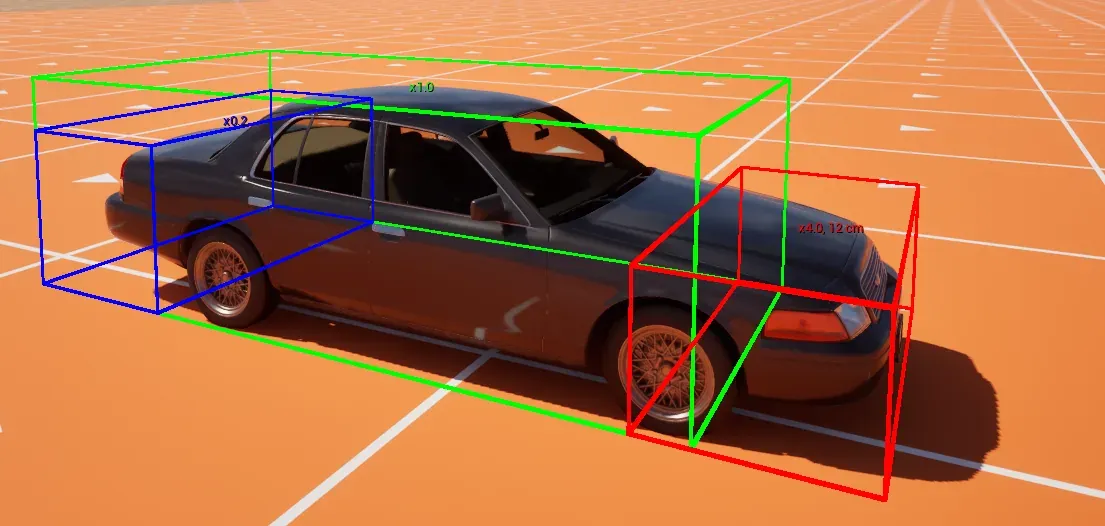
Crushform.ShowZones 1. Each zone draws as a box coloured by its stiffness on a log scale: green at x1, through yellow and orange toward red, which is full red from x4 up. Below x1 the colour turns toward blue, and x0.25 and lower are full blue. Each box is labelled with its stiffness multiplier and, where it has one, its depth cap.
- With a second car that has these zones in view, aim your car’s camera at a soft zone and type
Crushform.DebugImpact 15. Then aim at a stiff zone and type it again at the same speed. The soft zone dents deeper. The command skips the car you drive, so your own car cannot be the target.
Crushform.ShowZones and Crushform.DebugImpact are cheats: they work in every build except Shipping, and in the editor.
Troubleshooting
Section titled “Troubleshooting”The Zone Editor shows nothing in the level or in Play In Editor
Section titled “The Zone Editor shows nothing in the level or in Play In Editor”Cause. The editor draws zones only in the Blueprint editor’s viewport. A selection on a level or in a running game draws nothing.
Fix. Open the vehicle’s Blueprint and select the component there.
The vehicle has no Stiffness Zones section to edit
Section titled “The vehicle has no Stiffness Zones section to edit”Cause. The adapter’s Deform Profile is empty, or Dirt and Dents is off. The editor edits only the profile set on the adapter. Without it, the vehicle uses the project’s default profile, which is not the Blueprint’s to edit.
Fix. Set Deform Profile on the adapter, with Dirt and Dents on.
A zone shows “outside the lattice”
Section titled “A zone shows “outside the lattice””Cause. Part of the zone’s box lies past the lattice. The part past the lattice is ignored.
Fix. Move the box onto the body. If the body’s collision is larger than the lattice, widen Lattice Margin in the profile, or turn on Use Explicit Bounds and set Explicit Bounds.
A zone has no effect on a crush press or on the paint
Section titled “A zone has no effect on a crush press or on the paint”Cause. A crush press ignores zones, by design. Zones divide the dent push of a hit only, and the paint wears as the metal moves inside a zone.
Fix. Nothing for the crush press. For the dents, change the zone’s Stiffness.