SURFACESROLLING FX AND AUDIO
Rolling FX and audio
A tyre on gravel sounds like gravel, on mud it throws mud, and on snow it makes its own hiss. The plugin plays each wheel’s rolling sound and shows its rolling effect from the surface under that wheel. The sound and effect grow with speed, and braking makes the effect throw harder. This page covers how those follow the ground, how to tune them, and how to add your own surface.
| Rolling Sound | ||
|---|---|---|
| Rolling Sound | ||
| Attenuation | SA_CF_TireRolling | |
| Sound Class | None | |
| Priority | 0.1 | |
| Speed Parameter Name | Speed | |
| Tuning | ||
| Cabin Volume Scale | ||
| Cabin Low Pass Frequency | 3000.0 Hz | |
| Rolling FX | ||
| Rolling FX | ||
| FX Intensity Parameter | Intensity | |
| FX Tuning | ||
What it does
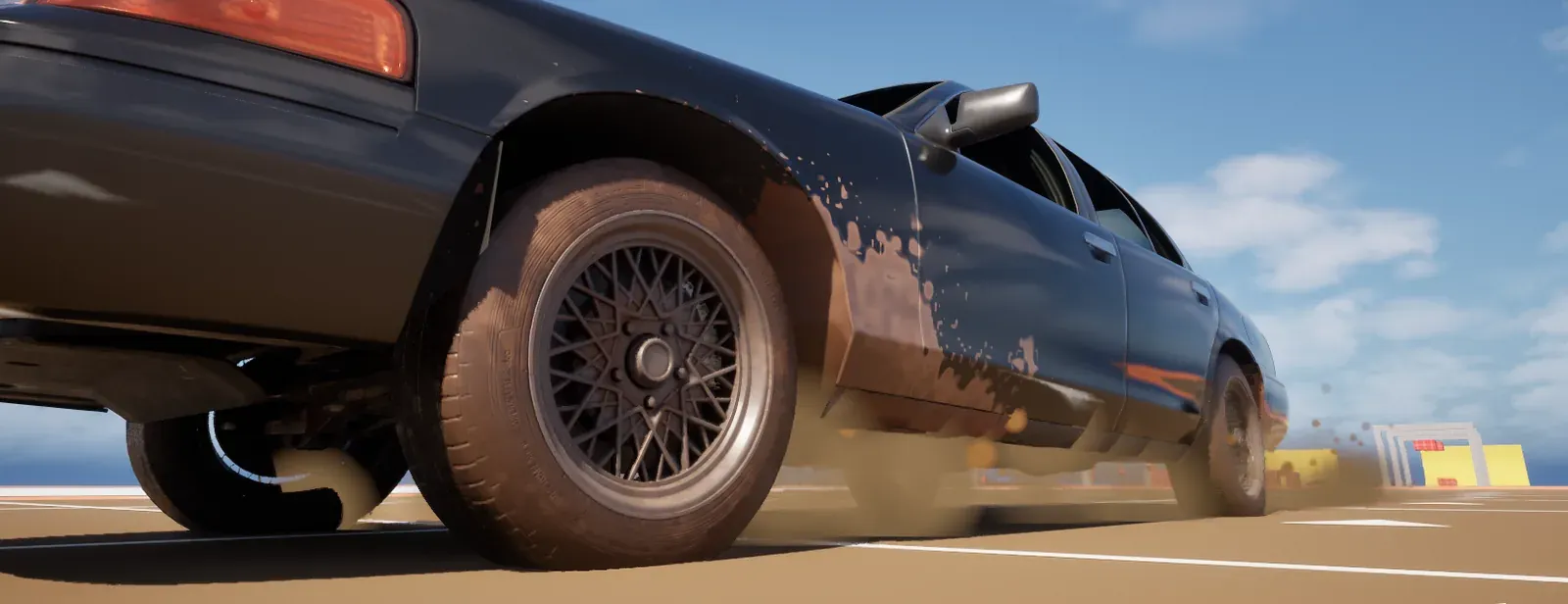
Section titled “What it does”Every wheel has its own rolling sound and rolling effect. Each one follows the surface under its wheel and fades in as the wheel speeds up. The sound is the surface’s rolling loop, and the effect is the surface’s Niagara system. Both are presentation only: they play on every machine that renders the vehicle, and a dedicated server plays neither.
How it works
Section titled “How it works”- Two components.
UCFRollingAudioComponentplays the rolling sound andUCFRollingFXComponentshows the effect. The vehicle adapter creates them under the Rolling Sound and Rolling FX flags. Each of the two reads the wheels from the vehicle’s host and works per wheel. - Sound per wheel. Each wheel has a voice, which follows the rolling sound of the surface under it and crossfades to a new one once that surface has held under the wheel for Surface Hold Time. The volume fades in linearly from Min Audible Speed KPH to Full Volume Speed KPH, and the pitch rises from Pitch at Min Speed to Pitch at Full Speed at Full Pitch Speed KPH. A small random pitch offset keeps identical wheels from playing in phase.
- Hearing. A wheel is silent unless a listener is within reach of the attenuation, so a distant vehicle stays quiet.
- Effect per wheel. The effect is a Niagara system, one per wheel, taken from the surface’s row. Its intensity is the wheel or vehicle speed over Full Intensity Speed KPH, up to 1, times Brake Boost while the wheel brakes. Braking, set with
SetBraking, raises it past 1 up to that boost. - Sleep. Every effect of the vehicle stops while the body and its fastest grounded wheel are both slower than Sleep Speed KPH. A car stuck in mud keeps its effect, because its spinning wheel is fast.
- Cabin.
SetCabinMuffledon the adapter lowers the rolling sound for a listener inside the cabin: the volume is multiplied by Cabin Volume Scale and a low-pass filter cuts above Cabin Low Pass Frequency. The same call muffles the engine sound when the adapter has one, which the Engine sound page covers. Nothing calls it for you, so the game tells the adapter when the listener is in the cabin. - Settings. The defaults for every vehicle are in Project Settings > Plugins > Crushform Wheels. A vehicle can override the sound tuning and the effect tuning on its adapter, or on the component itself.
Set it up
Section titled “Set it up”- In Project Settings > Plugins > Crushform Wheels, check Attenuation. It is
SA_CF_TireRollingby default. Set Sound Class if you have one. Leave it empty for the default class. - In your surfaces table, give each row a Rolling Sound and a Rolling FX. A sound must be a looping asset (see Troubleshooting). See Wheels and surfaces for the table.
- On the vehicle’s adapter, tick Rolling Sound and Rolling FX. Both are on by default.
- To make your own effect, create a Niagara system with a float user parameter named
Intensity, which is the project’s default. Set it as Rolling FX on a row. If the parameter has another name, set Rolling FX Intensity Parameter on that row to its name. - To tune a single vehicle, tick Override Rolling Sound Tuning or Override Rolling FX Tuning on its adapter and set the values there.
Use it
Section titled “Use it”Brake from Blueprint with the adapter’s Set Braking, from 0 to 1. Muffle the cabin with Set Cabin Muffled when the listener enters or leaves the car. The graph below runs when the custom event SetCabinState fires, muffles the cabin and then sets the brake to full.
From C++, call the same two functions on the adapter. The calls need the CrushformVehicle module (CFVehicleAdapterComponent.h), which you add to PublicDependencyModuleNames in your module’s Build.cs.
Adapter->SetBraking(0.8f);Adapter->SetCabinMuffled(bInCabin);SetCabinMuffled takes the cabin values of Crushform Wheels (for the wheels) and Crushform Engine (for the engine). Tick Override Cabin Muffling on the adapter to use its own Cabin Volume Scale and Cabin Low Pass Frequency for both instead.
Key settings
Section titled “Key settings”| Property | What it does | Default |
|---|---|---|
UCFWheelSettings::bRollingSound | The master switch of the rolling sound. Off, no wheel plays one. | true |
UCFWheelSettings::Attenuation | The attenuation of every rolling sound. Empty, and the sound stays off. | /Crushform/Sounds/SA_CF_TireRolling |
UCFWheelSettings::SpeedParameterName | The float parameter of the sound that takes the speed in km/h. None, and the speed is not sent. | Speed |
FCFRollingAudioTuning::FullVolumeSpeedKPH | The wheel speed at which the sound reaches full volume, in km/h. | 50 |
FCFRollingAudioTuning::SurfaceHoldTime | Seconds a new surface must hold under the wheel before the sound crossfades to it. | 0.15 |
UCFWheelSettings::CabinVolumeScale | The volume multiplier of the sound heard from the cabin. | 0.8 |
UCFWheelSettings::CabinLowPassFrequency | The low-pass cutoff of the sound heard from the cabin, in Hz. | 3000 |
UCFWheelSettings::bRollingFX | The master switch of the rolling effect. Off, no wheel shows one. | true |
UCFWheelSettings::FXIntensityParameter | The float parameter that takes a wheel’s intensity, for a row that names none. | Intensity |
FCFRollingFXTuning::FullIntensitySpeedKPH | The speed at which an effect reaches full intensity, in km/h. | 40 |
FCFRollingFXTuning::BrakeBoost | The intensity multiplier while braking. | 2 |
FCFRollingFXTuning::SleepSpeedKPH | The speed below which every effect of the vehicle stops, in km/h. 0 never sleeps. | 1 |
Check that it works
Section titled “Check that it works”Play Lvl_ProvingGround and drive the sedan from the ASPHALT strip onto the DIRT, MUD and SNOW strips. The rolling sound changes with each surface, and each wheel shows the effect of the surface under it. Brake hard on the dirt. The effect throws harder while the brakes are on. Run stat CrushformWheel to show the statistics of the wheel components.
Troubleshooting
Section titled “Troubleshooting”There is no rolling sound at all
Section titled “There is no rolling sound at all”Cause. Three things silence the sound. Rolling Sound is off on the adapter or in Crushform Wheels. The Attenuation is empty, and the plugin logs it when the component begins play:
%s: no Attenuation in Project Settings > Plugins > Crushform Wheels; the rolling sound stays offThe sound is also silent on a dedicated server.
Fix. Tick Rolling Sound on the adapter, set Attenuation in Crushform Wheels, and test on a client or a listen server.
The sound is silent when the camera is far away
Section titled “The sound is silent when the camera is far away”Cause. A wheel plays only while a listener is within reach of the attenuation’s maximum distance. This is by design, so a distant vehicle costs nothing.
Fix. Move the listener closer, or widen the attenuation’s range if the sound should carry further.
The rolling sound cuts out
Section titled “The rolling sound cuts out”Cause. The sound asset is not set to loop. The plugin logs it once per asset, when a wheel first plays it:
%s: rolling sound '%s' is not looping - it will cut out between restarts. Set bLooping on the asset.Fix. Set Looping on the sound asset.
A surface makes a sound but shows no effect
Section titled “A surface makes a sound but shows no effect”Cause. The row’s Rolling FX is empty, or it is not a Niagara system. A wheel on such a row stops its effect.
Fix. Set Rolling FX on that row to a Niagara system, such as NS_CF_Rolling_Mud.
The effects stop while the car creeps
Section titled “The effects stop while the car creeps”Cause. The effects sleep while the body and its fastest grounded wheel are both slower than Sleep Speed KPH, which is 1 km/h by default.
Fix. Lower Sleep Speed KPH in the tuning, or set it to 0 so that the effects never sleep.