SURFACESDIRT
Dirt
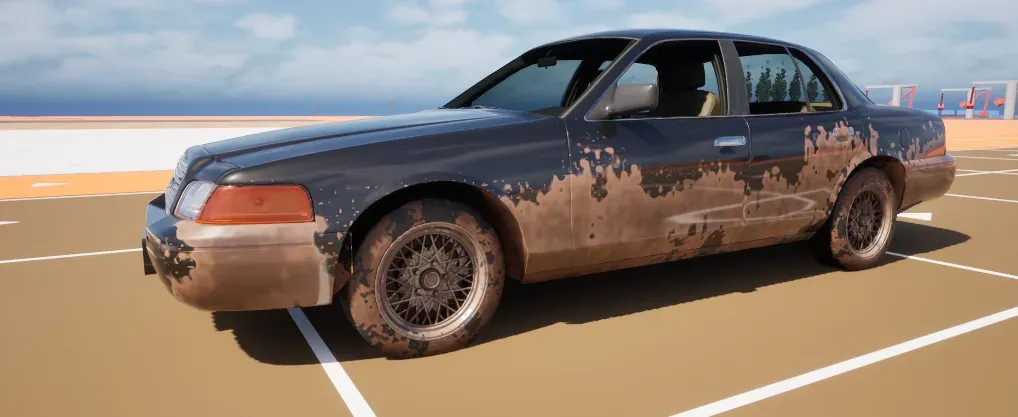
Drive a vehicle through mud and its lower body and wheel arches take the mud. Drive on asphalt and they stay clean. The wheels do the work: each wheel gives the body what the ground under it holds, and the body keeps that dirt until it fades or you wash it off. This page covers the four kinds of dirt, how they lie on the body, and the settings that shape them.
What it does
Section titled “What it does”Each wheel on a surface throws dirt onto its body. The plugin keeps four kinds for each body: dust, mud, snow and wetness. Every kind lands in its own shape: dust sprays up the body, mud splashes into the arches and behind the wheels, and snow lies low in the same places. The body’s paint and the wheels draw the dirt, so the look changes as the body gets covered.
How it works
Section titled “How it works”- Channels. The dirt atlas keeps one value per kind for each texel: dust in red, mud in green, snow in blue and wetness in alpha.
ECFDirtChannelnames the four channels. - Rates. The row of a surface gives each wheel on it four gain rates (
Dust,Mud,Snow,Wet), per second at the reference speed. A wheel gives dirt in proportion to its surface speed over Dirt Reference Speed, up to Max Dirt Speed Scale times the rates. A wheel that stands still on a surface gives none, and a wheel in the air gives none. - Shapes. A channel reaches the body through a shape with three parts: a spray that rises from the ground, an arch round each axle and a tail streaked behind each wheel. A part with weight 0 is switched off. The profile holds one shape per kind (
DustShape,MudShape,SnowShapeandWetShape). Dirt Scale multiplies every deposit, and 0 keeps the body clean with no dirt grid at all. - Shedding. The
Shedrates of a surface take dirt off the whole body, averaged over its wheels. - Stacking. A channel is either a Layer, which joins the stack, or an Overlay, which is drawn above every layer. The stack follows each channel’s ZOrder, lowest drawn first. Under Most Recent on Top the layer that gained dirt last lies on top instead. That order reads the fresh atlas (Dirt Fresh Atlas), which records when each texel last gained dirt. The shipped channels are these:
| Channel | Blend | ZOrder | Fade Delay (s) | Fade Duration (s) |
|---|---|---|---|---|
| Dust | Layer | 0 | 10 | 120 |
| Mud | Layer | 1 | 10 | 120 |
| Snow | Layer | 2 | 10 | 90 |
| Wet | Overlay | 3 | 2 | 25 |
- Baked order.
MF_CF_PaintandMF_CF_DirtAmountcarry the layer order as constants: Dirt Layer Order, and each channel’s Blend and ZOrder. Change one of them in the editor and both functions are rebuilt at once. The rebuild leaves them unsaved, so save both to keep the order. Fade Delay, Fade Duration and the channel name are read while the game runs and need nothing. - Clearing. A channel waits Fade Delay seconds after its last fresh dirt, then clears over Fade Duration seconds. A duration of 0 keeps it.
- Look.
MF_CF_Paintdraws the dirt on the body andMF_CF_WheelDirton the wheels. Both readMPC_CF_Dirt, the collection that holds the look every vehicle shares. A project can draw its own look instead, in Project Settings under the Look section. - Dedicated server. A dedicated server draws nothing, so it keeps no dirt on the body and fires none of the dirt events.
Set it up
Section titled “Set it up”- In the Content Browser, choose Add > Miscellaneous > Data Asset, pick the class CFProfile and name the asset DA_MyVehicle_Profile. This is the body’s deform profile, and the dirt shapes live in it.
- Open the profile. Under Dirt, set Dirt Scale to 1. The four shapes start with the defaults: dust sprays, mud and snow are thrown into the arches and tails, and wetness sprays with a light arch.
- On the vehicle’s adapter component, tick Dirt and Dents and set Deform Profile to the profile. With Deform Profile empty, the project’s default profile is used.
- Check the surfaces table. In Project Settings > Plugins > Crushform, Surfaces points to
DA_CF_Surfacesby default. Each row there says how much dirt its ground gives (see Wheels and surfaces). - Drive over a dirt strip and check the result as described in Check that it works below.
Use it
Section titled “Use it”To clean a spot on the body where the player hits it, call Wash At on the deform component with the hit point and a radius in centimetres. The graph below runs when the custom event WashNearMe fires, and washes a circle of 150 cm round the actor.
From C++, get the deform component from the adapter and call WashAt. GetDirtAt reads the dirt at a point, per channel. The calls need the Crushform module (CFDeformComponent.h) and the CrushformVehicle module (CFVehicleAdapterComponent.h); add both to PublicDependencyModuleNames in your module’s Build.cs.
UCFDeformComponent* Deform = Adapter->GetDeform();Deform->WashAt(HitLocation, 150.f);const FCFDirtValues Here = Deform->GetDirtAt(HitLocation);WashAt works on this machine only, so call it on every machine that should see the result. Wash washes the whole body and is authority only: it runs on the server and reaches every machine.
Key settings
Section titled “Key settings”| Property | What it does | Default |
|---|---|---|
UCFProfile::DirtScale | Multiplies every dirt deposit on the body. 0 keeps it clean and gives it no dirt grid. | 1 |
UCFProfile::DustShape | The spray, arch and tail of the dust channel. The other kinds have their own: MudShape, SnowShape, WetShape. | Dust sprays; mud has an arch and a tail; snow has all three; wetness sprays with a light arch |
UCFSettings::DirtReferenceSpeed | Tyre speed at which a surface’s rates apply as written, m/s. | 8 |
UCFSettings::MaxDirtSpeedScale | Most a faster tyre multiplies the rates by. | 2 |
UCFSettings::DirtUpdateInterval | Seconds between two dirt updates of one body. | 0.2 |
UCFSettings::DirtLayerOrder | Layers stack by each channel’s ZOrder, or the most recent dirt lies on top. Baked into the dirt functions. | Fixed |
FCFDirtChannelSettings::FadeDelay | Seconds without fresh dirt before a channel starts to clear. | 10 (Wet 2) |
FCFDirtChannelSettings::FadeDuration | Seconds that full dirt takes to clear. 0 keeps it. | 120 (Snow 90, Wet 25) |
UCFSettings::DirtEventInterval | Shortest pause, in seconds, between two dirt-changed events of one body. | 0.5 |
UCFSettings::DirtEventThreshold | How far the mean dirt of a side must move, 0 to 1, before the next event fires. | 0.02 |
UCFSettings::DirtAtlas | The render target that holds the dirt, one channel per kind. | /Crushform/Atlas/RT_CF_DirtAtlas |
UCFSettings::DirtLook | The collection of the look every vehicle shares: DirtStrength, WetDarken, WetGloss and the colours. | /Crushform/Materials/MPC_CF_Dirt |
UCFSettings::Surfaces | The surfaces table. Without it no body gets dirty. | /Crushform/Surfaces/DA_CF_Surfaces |
DirtStrength is at least 0, and 0 means no dirt anywhere. WetDarken is the factor that whatever lies under the wet is multiplied by, from 0 to 1, where 1 means no darkening. WetGloss is the share of the paint’s roughness that wet paint loses, from 0 to 1.
Check that it works
Section titled “Check that it works”Drive the sedan from the ASPHALT strip onto the DIRT strip on the Proving Ground and stop on it. The lower sides and the wheel arches take dirt as the wheels roll over it. Drive back onto the asphalt and stop. The dust and mud start to clear 10 seconds after their last fresh dirt, and take up to 120 seconds more to clear, unless you washed the body first.
Troubleshooting
Section titled “Troubleshooting”No dirt on the body at all
Section titled “No dirt on the body at all”Cause. Three things keep a body clean. Without a surfaces asset in Surfaces, no body gets dirty. A profile with Dirt Scale at 0 has no dirt grid. A dedicated server draws no dirt.
Fix. Set Surfaces to a surfaces asset with rows for your grounds. Set Dirt Scale above 0 on the profile. Test on a listen server or a client, not on a dedicated server.
The ground leaves no dirt
Section titled “The ground leaves no dirt”Cause. A wheel’s deposit grows with its surface speed, so a wheel that is locked and still deposits nothing. A row whose dirt rates are all 0 gives nothing either. A wheel on a physical material with no row gets the Default row, and a wheel in the air gets none.
Fix. Roll the wheel. Set the dirt rates on the row of that ground’s physical material, or on Default for the grounds that have no row.
Dirt stays on the body
Section titled “Dirt stays on the body”Cause. A channel whose Fade Duration is 0 keeps its dirt until it is washed off.
Fix. Set Fade Duration above 0 for that channel, under Dirt > Channels in the project settings, or wash the body.
The layers do not follow my new order
Section titled “The layers do not follow my new order”Cause. The order is baked into MF_CF_Paint and MF_CF_DirtAmount, so a change of Dirt Layer Order, Blend or ZOrder shows only after both functions are rebuilt. Nothing is rebuilt while either function is open in the Material Editor, and the notification says so.
Fix. Close MF_CF_Paint and MF_CF_DirtAmount, run Crushform.RebakeDirtOrder in the editor console, and save both functions. The command is editor only.
Most Recent on Top falls back to Z Order
Section titled “Most Recent on Top falls back to Z Order”Cause. The order reads the dirt fresh atlas. Without a usable Dirt Fresh Atlas it falls back to Z Order and logs once per world:
No usable Crushform dirt fresh atlas (Project Settings > Plugins > Crushform > Dirt Fresh Atlas): %s keeps the freshness of its dirt but cannot show it, so on the body Most Recent On Top falls back to Z Order (the wheels keep ranking by freshness)Fix. Set Dirt Fresh Atlas to /Crushform/Atlas/RT_CF_DirtFreshAtlas. A replacement must be an RGBA8 render target of the same size as the lattice atlas, or the log names it and the fallback stays.