GET STARTEDYOUR OWN VEHICLE
Your own vehicle
Use this page for a vehicle that is not a Chaos Vehicles pawn. For a Chaos Vehicles pawn, the Crushform Chaos Vehicle Adapter reads the wheels from the movement component, and Quick start covers it.
Before you start
Section titled “Before you start”- The root component of the actor is the simulated body. Dents and paint are measured on it, and a dent needs a deform profile.
- Set up the materials as in Quick start.
- The wheels are components of the actor: a mesh, or a scene component that turns with the wheel.
- For C++, add the Crushform modules you call to your
Build.cs, as in Installation.
With the Crushform Vehicle Adapter
Section titled “With the Crushform Vehicle Adapter”The adapter traces the ground under each wheel you list. It creates the dents and dirt, the glass, the tyres, the sounds, the prop breaking and the impact feedback, and answers their questions about the vehicle.
- Add › Crushform Vehicle Adapter. Add it to the actor.
- Set
UCFVehicleAdapterComponent::Wheels: oneFCFAdapterWheelfor each wheel. In Details, expand Wheels and add one element per wheel. In each element, pick the wheel in the Wheel list, which shows the scene components of the actor, and set Radius to the tyre radius in centimetres. A radius of 0 means half the height of the wheel mesh’s bounds. Set the radius for a wheel that already turns.
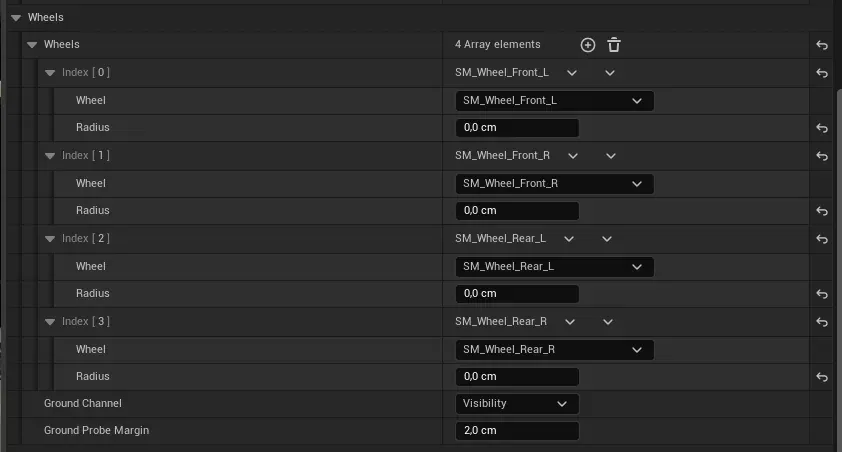
- Set
GroundChannel, the channel the wheels trace the ground on (Visibility by default), andGroundProbeMargin, 2 cm by default. The trace starts at the hub, so a tyre that is this far above the ground still touches it. Or callUCFVehicleAdapterComponent::SetWheelsduring the game withFCFAdapterWheelStatevalues. It also works before BeginPlay. - Set
AuthorityandRamAllowanceMps.Serveris the default: the server simulates the vehicle and judges its hits. WithOwningClient, the machine that drives the vehicle simulates it and reports its hits, and the server accepts a report only when its speed change is at most the vehicle’s recent peak speed plusRamAllowanceMps(15 m/s by default), scaled up for a lighter body that gives way. Then set the profiles and the feature flags. An emptyDeformProfileorTireProfiletakes the project default. Every feature flag is on by default; each one switches off the component it names. - Bind
OnDamageChangedin Blueprint if the vehicle must react to damage. It fires when the body’s damage changes, and never without Dirt and Dents.
Tell the adapter what the vehicle does
Section titled “Tell the adapter what the vehicle does”The adapter cannot see your controls, so tell it:
- Call
UCFVehicleAdapterComponent::SetBrakingwith a value from 0 to 1. The rolling effects throw more dirt while the vehicle brakes. - Call
UCFVehicleAdapterComponent::SetCabinMuffledwith true while the listener sits in the cabin. It muffles the rolling sound and the engine sound. - The engine sound reads five events:
GetEngineRunState(Off, Cranking or Running),GetEngineRPM,GetEngineIdleRPM,GetEngineMaxRPMandGetEngineLoad. The adapter answers off and zero. Override them in a Blueprint subclass of the adapter, or in C++.
Feed it from your movement component
Section titled “Feed it from your movement component”If your wheels are simulated by a physics system other than the built-in trace, override the four wheel events of the adapter: UCFVehicleAdapterComponent::BuildWheelContacts, CollectWheelMeshes, BuildTireWheels and BuildLoadRatios. The Chaos adapter does the same for Chaos Vehicles.
For each wheel, BuildWheelContacts fills one FCFWheelContact per frame:
Point: where the tyre touches the ground, in world space, cm. It is read only whilebGroundedis true.Radius: the tyre radius, cm.bGrounded: false while the wheel is in the air. A wheel in the air leaves no dirt.PhysicalMaterial: the ground under the wheel. Null takes the default rates.SurfaceSpeed: the speed of the tyre’s surface, m/s, positive when it rolls the vehicle forward.GroundSpeed: the speed of the hub over the ground, m/s. Below 0, the vehicle’s velocity is used.WheelIndex: the wheel’s number, counted from 0. It stays the same for the wheel’s whole life.
CollectWheelMeshes returns the wheel meshes. They take dirt and never deform. BuildTireWheels returns each tyre’s mesh, physics radius and HostIndex, and bAcceptsPush; the host interfaces guide says when to set it. BuildLoadRatios returns the contact force over the nominal load, by HostIndex; a missing or negative entry holds that wheel’s load factor at 1.
Without an adapter: host interfaces
Section titled “Without an adapter: host interfaces”Use host interfaces when your vehicle has its own component setup and you do not want the adapter. You add the Crushform components yourself, and you answer their questions in the actor or in one of its components. The interfaces live in the Crushform module, except ICFTireHost and ICFTireViewer (CrushformTire) and ICFEngineHost (CrushformEngine).
Which components to add
Section titled “Which components to add”| Component | Module | What it needs |
|---|---|---|
UCFDeformComponent | Crushform | A deform profile: without one it does nothing. The actor’s root component is the simulated body. |
UCFGlassUnitsComponent | Crushform | The glass panes, which are UCFGlassComponent children of the actor. The actor’s GetCrushformGlass returns this component. It needs the deform component. |
UCFTireComponent | CrushformTire | ICFTireHost on the actor. Without it the tyres stay round. A tyre profile, or the project default. |
UCFRollingAudioComponent | CrushformWheel | ICFWheelHost on the actor. Each surface’s sound comes from the project’s surface table. |
UCFRollingFXComponent | CrushformWheel | ICFWheelHost on the actor. Each surface’s effect comes from the project’s surface table. |
UCFPropContactComponent | Crushform | The actor’s root primitive as the body. ICFBreakerHost is optional. |
UCFImpactFeedbackComponent | CrushformImpact | The primitive whose hits it reports, set with SetObservedPrimitive. Its EventTag plays the sound; empty means no sound. |
UCFEngineAudioComponent | CrushformEngine | ICFEngineHost on the actor. A sound profile, or the project default. |
On a vehicle body, the adapter uses UCFNetImpactFeedbackComponent instead of UCFImpactFeedbackComponent. It reports the body’s hits only on the machine that simulates the body, and the other machines play the relayed copy.
In the Add menu, the impact feedback components, CFImpact Feedback, CFNet Impact Feedback and the part one, are listed under Custom, not under Crushform.
The six host interfaces:
| Interface | Asked by | Answers |
|---|---|---|
ICFDeformHost | UCFDeformComponent, the net impact feedback | Which machine simulates the body, the ignored actors, whether a report is plausible, which meshes deform, the wheel meshes, the glass |
ICFWheelHost | the dirt layer, UCFRollingAudioComponent, UCFRollingFXComponent | The frame’s wheels, as FCFWheelContact values |
ICFBreakerHost | UCFPropContactComponent | Whether this machine simulates the body, the contact body, the report route, the deform component a broken unit dents |
ICFTireHost | UCFTireComponent | The wheels, the offsets and pushes written back, the load ratios, the rig |
ICFTireViewer | the tyre budget, on a pawn | The vehicle the pawn rides in, or null on foot |
ICFEngineHost | UCFEngineAudioComponent | The engine’s state: run state, RPM, idle and maximum RPM, load |
A component finds its host in this order. First, the host set with SetCrushformHost before BeginPlay. Then the host registered for the actor in UCFHostRegistry. Then the actor itself, if it implements the interface. Otherwise there is no host. Each event answers with ECFHostAnswer: Default means the component decides as if there were no host, and Yes or No overrides that.
In Blueprint
Section titled “In Blueprint”- Open the actor’s Blueprint and go to Class Settings. Under Implemented Interfaces, click Add and pick the interface, for example CFDeform Host, then CFWheel Host.

- The functions of the interfaces appear in My Blueprint under Interfaces › Crushform, with their C++ names without spaces, such as
GatherCrushformWheelMeshes. Double-click one to implement it. AnECFHostAnswermember that you leave untouched returnsDefault. A list member that you leave untouched gathers nothing.
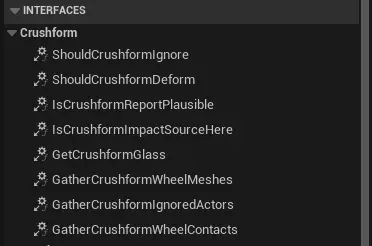
GatherCrushformWheelMesheshas an output array, so it is a function. Build an array of the four wheel meshes and connect it to the output of the Return node.
In C++
Section titled “In C++”Implement the interfaces on the actor, and override the _Implementation of each event you answer. This class answers the wheel meshes and the wheel contacts of a four-wheel vehicle.
#pragma once
#include "CoreMinimal.h"#include "CFDeformHost.h"#include "CFWheelHost.h"#include "GameFramework/Actor.h"#include "YourVehicle.generated.h"
class UMeshComponent;class UStaticMeshComponent;
UCLASS()class AYourVehicle : public AActor, public ICFDeformHost, public ICFWheelHost{  GENERATED_BODY()
public:  virtual void GatherCrushformWheelMeshes_Implementation(TArray<UMeshComponent*>& OutMeshes) const override;  virtual void GatherCrushformWheelContacts_Implementation(TArray<FCFWheelContact>& OutContacts) const override;
  /** The four wheels, in WheelIndex order. Fill it in the constructor with the wheel components you create, or in Blueprint once they exist. */  UPROPERTY(VisibleAnywhere)  TArray<TObjectPtr<UStaticMeshComponent>> Wheels;
  /** Tyre radius, cm. */  UPROPERTY(EditAnywhere)  float WheelRadius = 35.f;
  /** The speed of each wheel's surface, m/s, from your vehicle model. */  TArray<float> WheelSurfaceSpeeds;};
The body of GatherCrushformWheelContacts traces down from each wheel’s hub and fills one FCFWheelContact per wheel. A wheel that is in the air keeps bGrounded false, and its Point and PhysicalMaterial stay unset.
#include "YourVehicle.h"#include "Components/StaticMeshComponent.h"#include "Engine/World.h"#include "PhysicalMaterials/PhysicalMaterial.h"
void AYourVehicle::GatherCrushformWheelMeshes_Implementation(TArray<UMeshComponent*>& OutMeshes) const{  for (UStaticMeshComponent* Wheel : Wheels)  {    OutMeshes.Add(Wheel);  }}
void AYourVehicle::GatherCrushformWheelContacts_Implementation(TArray<FCFWheelContact>& OutContacts) const{  UWorld* World = GetWorld();  if (!World)  {    return;  }
  // The physical material comes back only when the query asks for it.  FCollisionQueryParams Params(SCENE_QUERY_STAT(YourVehicleWheel), false, this);  Params.bReturnPhysicalMaterial = true;
  for (int32 Index = 0; Index < Wheels.Num(); ++Index)  {    const UStaticMeshComponent* Wheel = Wheels[Index];    if (!IsValid(Wheel))    {      continue;    }
    // Trace down from the hub, past the tyre radius.    const FVector Hub = Wheel->GetComponentLocation();    const FVector TraceEnd = Hub - FVector(0.f, 0.f, WheelRadius + 20.f);    FHitResult Hit;
    FCFWheelContact Contact;    Contact.WheelIndex = Index;    Contact.Radius = WheelRadius;    Contact.SurfaceSpeed = WheelSurfaceSpeeds.IsValidIndex(Index) ? WheelSurfaceSpeeds[Index] : 0.f;    Contact.bGrounded = World->LineTraceSingleByChannel(Hit, Hub, TraceEnd, ECC_Visibility, Params);    if (Contact.bGrounded)    {      Contact.Point = Hit.ImpactPoint;      Contact.PhysicalMaterial = Hit.PhysMaterial.Get();    }
    OutContacts.Add(Contact);  }}
Code that needs the wheels of an actor asks its host through Execute_, never by calling the event by name on a pointer:
#include "CFHostRegistry.h"#include "CFWheelHost.h"
TArray<FCFWheelContact> Contacts;if (UObject* Host = UCFHostRegistry::FindHost(this, *UCFWheelHost::StaticClass())){  ICFWheelHost::Execute_GatherCrushformWheelContacts(Host, Contacts);}
Pitfalls
Section titled “Pitfalls”- A second host for the same actor and interface replaces the first one, with a warning.
- A Blueprint host does not answer in the editor preview. The preview does not run its script, so the lattice layout in Details and the zone editor do not see its answers. Check the result in Play.
- Do not call an interface event by name on an interface pointer. Use the
Execute_function, or the component’s accessor.
Key settings
Section titled “Key settings”These are the adapter’s properties. The adapter’s own settings are in Details on the adapter component.
| Property | Default | What it does |
|---|---|---|
UCFVehicleAdapterComponent::Wheels | empty | The wheels the adapter traces: a component and a Radius for each. |
GroundChannel | Visibility | The channel the wheels trace the ground on. |
GroundProbeMargin | 2 cm | How far above the ground a tyre may be and still touch it. |
Authority | Server | Which machine simulates the vehicle and judges its hits. |
RamAllowanceMps | 15 m/s | With OwningClient: how much faster than the recent peak speed a reported hit may be. |
DeformProfile | project default | The dents and dirt of the body. |
TireProfile | project default | The tyres. |
EngineSoundProfile | project default | The engine’s sound. |
bDirtAndDents, bGlass, bTires, bRollingSound, bRollingFX, bEngineSound, bImpactFeedback, bBreaksProps | all on | Each one switches off the component it names. |
ImpactImpulsePerKgForFullIntensity | 600 cm/s | The velocity change of a hit that plays at full strength. |
ImpactMinImpulsePerKg | 50 cm/s | The velocity change below which a hit plays nothing. |
PropContactMinSpeedCmS | 50 cm/s | Below this speed the vehicle breaks no props. |
Check that it works
Section titled “Check that it works”- Open the level with your vehicle and press Play.
- Open the console with the tilde key and run
Crushform.Stats. It prints the atlas slots in use and the hit counters of every damageable actor. - Run
Crushform.Debug 1. It draws the damaged nodes of the body’s lattice.Crushform.Debug 2draws all of them. - Run
Crushform.DebugImpact 10 <name>to hit the actor whose name contains<name>at 10 m/s, up to 100 m away. Without a name it hits the actor under the crosshair. It never hits the pawn you control, so check your own vehicle by driving into a wall, as in step 5 of Quick start. It is a cheat: every build except Shipping has it, the editor included. - Drive across ground made of
PM_CF_Mud. The wheels should react to the mud as the project’s surfaces table sets it.