VEHICLECHAOS ADAPTER
Chaos adapter
What it does
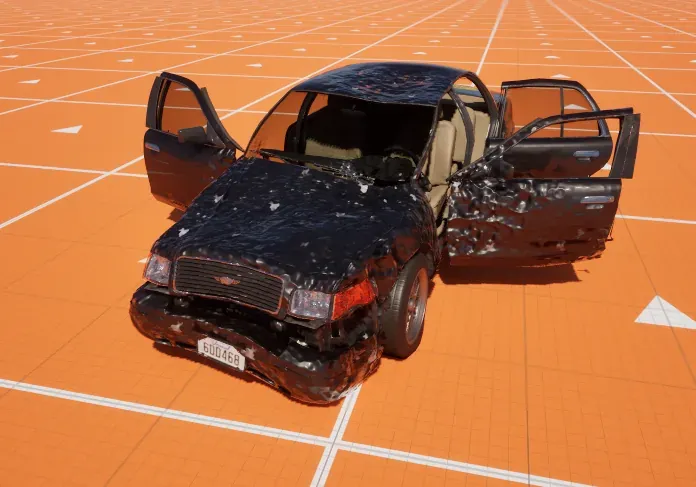
Section titled “What it does”The Crushform Chaos Vehicle Adapter is the adapter for a Chaos wheeled vehicle: an AWheeledVehiclePawn with a Chaos movement component. It takes the vehicle’s wheels, its engine and its wheel loads from that movement component, so you list no wheels. It is the adapter the plugin’s sedan uses. Everything the Vehicle adapter does on the body, the glass, the tyres, the sounds and the impacts, it does here too. This page covers what the Chaos adapter adds.
How it works
Section titled “How it works”Wheels. The adapter reads the movement component’s wheel setups and wheel states. A wheel’s mesh is the mesh component attached to the vehicle mesh at that wheel’s bone. A wheel whose bone has no mesh on it has no tyre to deform and gets no wheel dirt. The adapter still reads its contact with the ground.
Tyres. The tyre sinks along the vehicle’s up direction, applied after the bones have moved, because a wheel bone spins and steers. The push that moves a wheel off an obstacle is applied with the sink, in the owner’s space; see Tyre deformation. The adapter also gives each tyre its wheel’s load over its nominal share. The load comes from the suspension’s spring force, so a wheel carrying more weight reads a higher load.
Engine. Chaos has no ignition. The engine runs while the movement component exists. Its speed comes from the movement component’s engine speed, and its idle and maximum speed come from the movement component’s engine setup. Its load comes from the driver’s throttle, and from the brake pedal while the vehicle reverses. A vehicle that another machine drives reads no load from the local pedals, so it sounds like coasting on your machine.
Settings hidden. The Chaos adapter hides the generic adapter’s wheel list, Ground Channel and Ground Probe Margin, because the movement component supplies the wheels and the ground contacts. These settings do nothing here.
Setup check. If the owner is not an AWheeledVehiclePawn with a Chaos movement component, the adapter logs an error and reports no wheels. The rest of the adapter still creates its components.
Set it up
Section titled “Set it up”Start from a pawn that already meets the requirements in Quick start. The steps for adding the adapter are in its step 3, and the steps here are only what differs.
-
Add the adapter as in step 3 of Quick start: the Crushform Chaos Vehicle Adapter, not the generic one. Compile and save.
-
Select the adapter. Set Deform Profile and Tire Profile, or leave them empty to take the project defaults.
-
Check the feature switches. Each one switches off the component it names, as in the Vehicle adapter table.
| Crushform | ||
|---|---|---|
| Authority | ||
| Deform Profile | None | |
| Tire Profile | None | |
| Ram Allowance Mps | 15.0 m/s | |
| Features | ||
| Dirt and Dents | ||
| Glass | ||
| Tires | ||
| Rolling Sound | ||
| Rolling FX | ||
| Engine Sound | ||
| Impact Feedback | ||
| Breaks Props | ||
- Check that each wheel’s mesh sits on its wheel bone. A wheel that is only a bone gets no tyre deformation and no wheel dirt.
Use it
Section titled “Use it”Read the engine speed in C++. Get the Chaos adapter from the pawn, then call the getters. Each signature is the one in the header. Your module must list the Crushform modules in its Build.cs, as in Installation.
#include "CFChaosVehicleAdapterComponent.h"
void AMyVehicle::UpdateHud(){  if (const UCFChaosVehicleAdapterComponent* Adapter = FindComponentByClass<UCFChaosVehicleAdapterComponent>())  {    const float Rpm = Adapter->GetEngineRPM();    const float IdleRpm = Adapter->GetEngineIdleRPM();    const float MaxRpm = Adapter->GetEngineMaxRPM();    HudRpmFraction = (MaxRpm > IdleRpm) ? (Rpm - IdleRpm) / (MaxRpm - IdleRpm) : 0.f;  }}
To change one of the adapter’s wheel answers in C++, override its _Implementation in a subclass. In the override, call Super:: with the same _Implementation function to keep the Chaos answer, and never call the event by name.
Key settings
Section titled “Key settings”The Chaos adapter inherits these from UCFVehicleAdapterComponent.
| Property | What it does | Default |
|---|---|---|
UCFVehicleAdapterComponent::DeformProfile | The dents and dirt of the body. Empty takes the project default. | empty |
UCFVehicleAdapterComponent::TireProfile | The tyres. Empty takes the project default. | empty |
UCFVehicleAdapterComponent::Authority | Which machine simulates the vehicle and judges its hits. | Server |
UCFVehicleAdapterComponent::bDirtAndDents | Dirt and Dents: the body dents and gets dirty. | on |
UCFVehicleAdapterComponent::bGlass | Glass: needs Dirt and Dents. | on |
UCFVehicleAdapterComponent::bTires | Tires: the tyres deform on the wheel meshes. | on |
UCFVehicleAdapterComponent::bRollingSound | Rolling Sound. | on |
UCFVehicleAdapterComponent::bRollingFX | Rolling FX. | on |
UCFVehicleAdapterComponent::bEngineSound | Engine Sound: also needs the engine sound switch in Crushform Engine. | on |
UCFVehicleAdapterComponent::bImpactFeedback | Impact Feedback. | on |
UCFVehicleAdapterComponent::bBreaksProps | Breaks Props. | on |
UCFVehicleAdapterComponent::EngineSoundProfile | The engine’s sound. Empty takes the default in Crushform Engine. | empty |
UCFVehicleAdapterComponent::EngineSoundOffset | Where the engine sound plays, relative to the owner’s root. | zero |
UCFVehicleAdapterComponent::Wheels | Hidden in the Details panel and unused: the movement component supplies the wheels. | empty |
UCFVehicleAdapterComponent::GroundChannel | Hidden and unused: the movement component supplies the contacts. | Visibility |
UCFVehicleAdapterComponent::GroundProbeMargin | Hidden and unused. | 2 cm |
The per-vehicle tuning values, the impact thresholds and the cabin values work as in the Vehicle adapter page.
Check that it works
Section titled “Check that it works”- Press Play and drive the vehicle. Then open the console and run
stat CrushformChaos. The Chaos Adapter Wheel Contacts and Chaos Adapter Tyre Offsets times appear. - Run
Crushform.Stats. After a crash the line for your vehicle shows ahitscount above 0. - Drive over the mud strip. The wheels get dirty, and the ground under them shows the spray.
The console commands are in every build except Shipping, and in the editor.
Troubleshooting
Section titled “Troubleshooting”The log says the owner is not a Chaos wheeled vehicle, and the adapter reports no wheels
Section titled “The log says the owner is not a Chaos wheeled vehicle, and the adapter reports no wheels”Cause: The actor is not an AWheeledVehiclePawn with a UChaosWheeledVehicleMovementComponent. The adapter finds no movement component to read.
Fix: Make the vehicle’s parent class a wheeled vehicle pawn with the Chaos movement component, as Quick start requires. Use the generic Vehicle adapter only for an actor that is not a Chaos vehicle.
A wheel gets no tyre deformation and no wheel dirt
Section titled “A wheel gets no tyre deformation and no wheel dirt”Cause: The wheel is only a bone. The adapter finds a wheel mesh only as a mesh component attached to the vehicle mesh at the wheel’s bone, and this wheel has none.
Fix: Attach the wheel’s mesh component to the vehicle mesh, with the wheel’s bone as its socket.
The engine sits at idle, and the readout stays at idle
Section titled “The engine sits at idle, and the readout stays at idle”Cause: The engine speed reads 0 while the movement component does not simulate the engine. The sound then plays at idle.
Fix: Check that the vehicle’s engine is simulated, and that the engine setup has an idle and a maximum speed.
Other players’ cars sound like they are coasting
Section titled “Other players’ cars sound like they are coasting”Cause: The adapter reads the throttle and the brake from the local driver’s pedals. On a vehicle another machine drives, those pedals read 0, so the engine sound stays at the coast volume.
Fix: This is the expected behaviour of the Chaos adapter. To hear the load on remote cars, override GetEngineLoad in a Blueprint subclass of the adapter, and answer from the replicated throttle of your own vehicle.